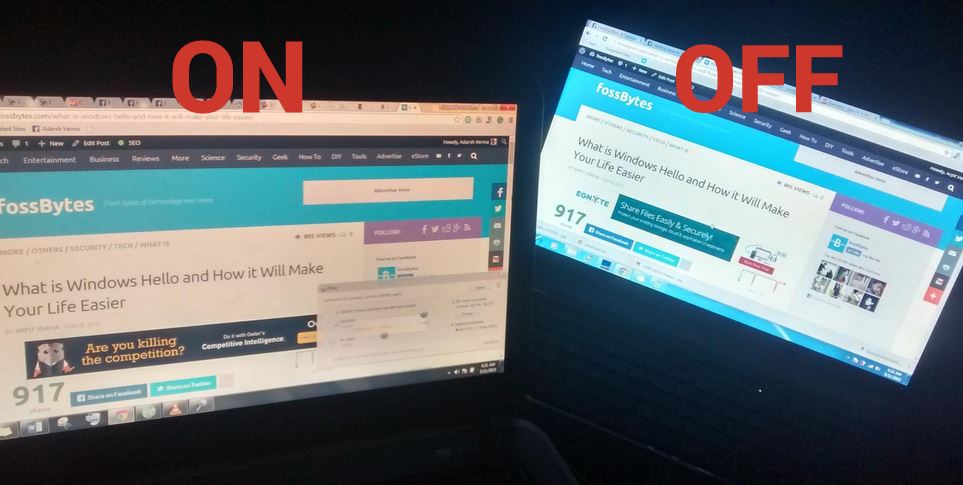
No more watery eyes, when you wake up from sleep in the middle of the night to work on your bright computer screen. Your eye savior, f.lux is here. First things first, what is f.lux and why do you need it?
Why do you need f.lux ?
Decreasing the brightness is not that attractive an option, because the blue light emissions from your screen is still significant enough to well up your eyes with water and completely ruin your sleepy state. It is proven that exposure to blue light significantly aids in keeping you awake for a longer time in the night.
To get to the science behind it, here’s why. Most of us don’t know this, but there is another kind of receptor cells beside rods and cones in our retina. It’s called Melanopsin. The discovery was made about 15 years ago. Melanopsin is sensitive to narrow band of blue light in 460-480 nm range. Melanopsis works different functions for different creatures, but that’s another story.
There are two things I’d like to recommend to your reading list to get more information about melanopsin and effect of blue light on sleep:
1) Internal Time by Til Roennberg
2) Research Papers and articles – link
What is f.lux what does it do?
f.lux is a desktop applet for Windows, Linux, Mac, iPhone, iPad and iPod touch which limits the glow of your screen. Instead, it replaces that with a warm tone. There is no problem for your eyes not to feel comfortable on the screen in the morning. The daylight is sufficient and doesn’t let your eyes feel the glow that the screen throws. But say at 11 PM while you are, say trying to work late after sneaking on your father or wife, you power up your computer and you get instantly taken back by the brightness!
You can reduce the brightness and contrast to a certain extent, but there is a limit to which you can go without compromising your experience. f.lux comes to rescue here. It automatically switches to a warm tone at night and goes back to a brighter shade in the morning.
Don’t worry as it uses only 3.86MB of RAM approximately, is completely free, has no CPU load and works like a charm without any user interference. The working is also fairly simple. You can also customize the way it works, especially how warm you want your screen to be at night.
How to use f.lux to save your eyes?
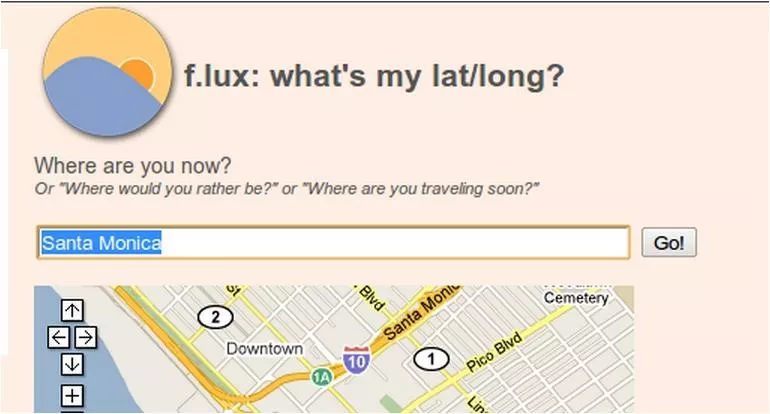
It does the work by calculating your present location (through google maps)and works according to the sunrise/sunset cycle. The f.lux indicator applet automatically manages the color temperature of your screen based on your latitude and longitude, or if you are in the US, your zip code.
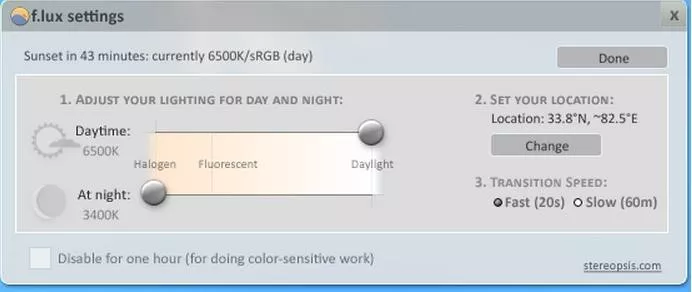
In the preferences panel, you can set your preferred night-time color temperature and see a preview, as well as seeing the current color temperature.
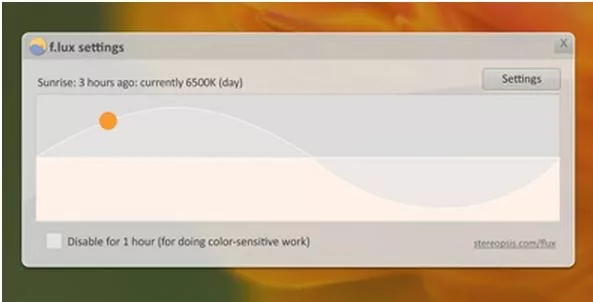
You can even pause the applet if you want to:
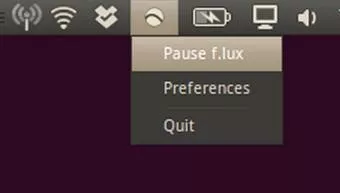
You can download f.lux for windows here and for Mac here.
For iPhone, iPad and iPod Touch you need to jailbreak your device in order to install it. You can follow the instructions here.
For iPhone, iPad and iPod Touch you need to jailbreak your device in order to install it. You can follow the instructions here.
To install f.lux on Linux (Ubuntu) open up the terminal and copy paste the following commands one by one.
1
|
sudo add-apt-repository ppa:kilian/f.lux
|
1
|
sudo apt-get update
|
1
|
sudo apt-get install fluxgui
|
If you are having an error in adding the ppa (the first command), follow this link to troubleshoot it.
The Linux GUI of the f.lux applet doesn’t provide as much customizing options as that of the other platforms, so if you are interested in adding features to it, you could do it on its open source code on GitHub.
source : www.fossbytes.com
source : www.fossbytes.com